
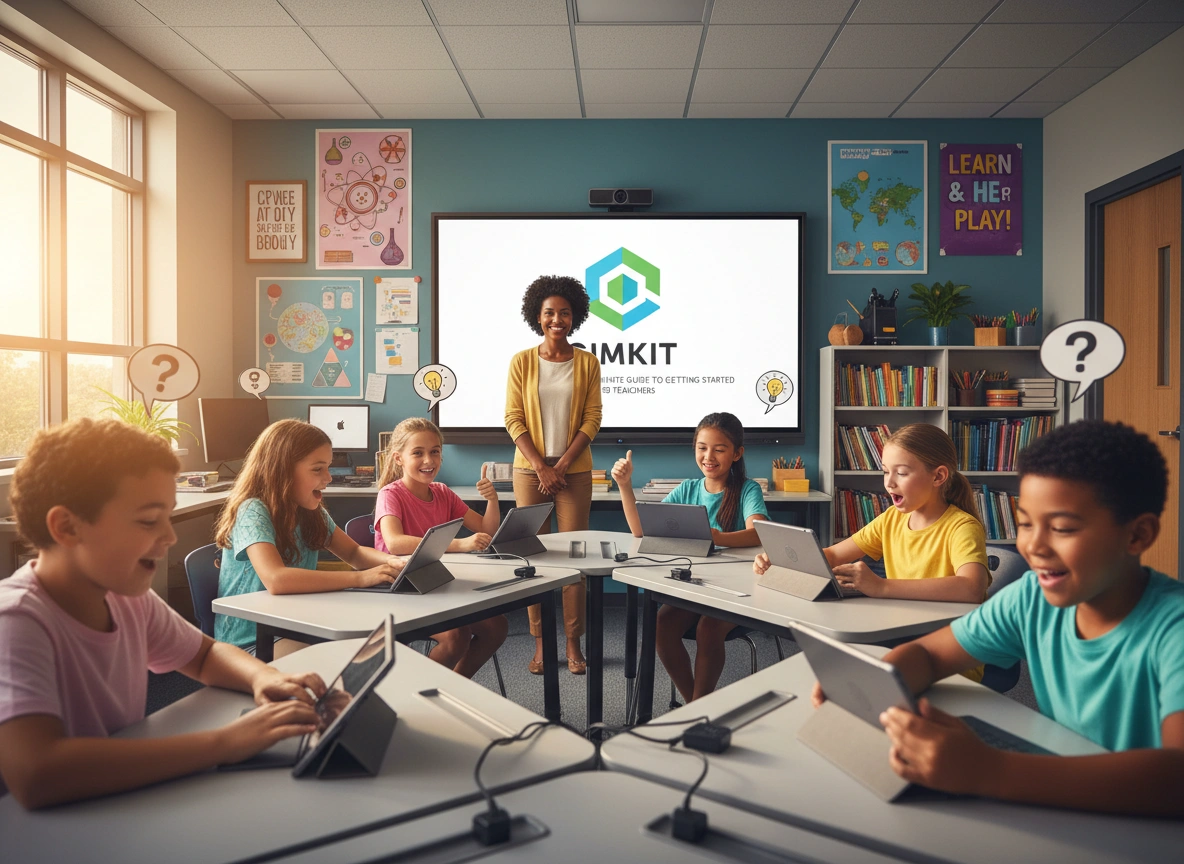
Every teacher knows the struggle of the post-lunch slump or the glazing over of eyes during a review session. You’re teaching important material, but the energy in the room just isn’t matching your enthusiasm. Gamification has become a powerful antidote to this classroom lethargy, and one tool is rapidly climbing to the top of the leaderboard: Gimkit.
If you have heard students shouting about “earning cash” or “buying power-ups” in the classroom next door, you have likely heard Gimkit in action. This guide is your roadmap to understanding, mastering, and deploying this engagement powerhouse in your own classroom. We will cover everything from the initial signup to advanced strategies that turn review days into the highlight of the week.
What is Gimkit and Why Should You Care?
Gimkit is a digital quiz game platform, similar to Kahoot! or Quizizz, but with a unique twist that sets it apart. It was actually created by a high school student who felt that traditional classroom games were becoming stale. The core mechanic isn’t just answering questions correctly; it’s about strategy, resource management, and reinvestment.
When students answer questions correctly in Gimkit, they earn virtual currency. They can use this “money” to buy upgrades and power-ups in the in-game shop. These upgrades might let them earn more money per question, protect them from losing points, or even hinder other players (if you allow it). This adds a layer of depth that keeps students engaged far longer than a standard multiple-choice quiz.
Why teachers love it:
- Repetition without boredom: Students answer the same questions multiple times to earn cash, reinforcing memory without the groan-inducing feeling of repetitive drills.
- High engagement: The economy system hooks students who might not be motivated by points alone.
- Data-rich: You get detailed reports on student performance, highlighting exactly which concepts need reteaching.
- Self-paced: Unlike some live quizzes where everyone waits for the slowest responder, Gimkit allows students to move at their own speed.
Step 1: Setting Up Your Command Center
Getting started is painless. You don’t need a degree in computer science to get this running.
Creating Your Account
- Visit the website: Head over to
gimkit.comand click “Sign Up.” - Choose your role: Select “Educator.”
- Google integration: If your school uses Google Workspace, sign up with your Google account. This saves time and makes future logins seamless. Alternatively, you can use your email address.
- Select your plan: Gimkit offers a robust free version (Gimkit Basic) and a paid version (Gimkit Pro). The free version is incredibly generous and fully functional for most classrooms, though the Pro version offers unlimited modes and more editing features.
Creating Your First Kit
In Gimkit lingo, a question set is called a “Kit.” Here is how to build one:
- Dashboard: From your main dashboard, click the “New Kit” button.
- Name and subject: Give your Kit a clear name (e.g., “Civil War Review” or “Periodic Table Basics”) and select a subject area.
- Adding questions: You have four magic options here:
-
- Add from Scratch: Type out your questions and answers manually.
- Question Bank: Search Gimkit’s massive library of existing Kits and import questions other teachers have already written. This is a massive time-saver.
- Import from Flashcards: If you use Quizlet, you can import sets directly.
- Import from Spreadsheet: Upload a CSV file if you have a large batch of questions ready.
- Cover photo: Add a fun image to represent the Kit.
- Finish: Click “All Done” to save.
Step 2: Launching a Game
Now that you have content, it is time to play. Gimkit offers various “Game Modes,” which change the rules and objectives of the session.
- Select your Kit: Click on the Kit you just created.
- Click “Play Live”: This is for synchronous classroom play. (There is also an “Assign Homework” option for asynchronous work).
- Choose a Mode:
-
- Classic: Students compete individually to earn the most money.
- Team Mode: Students work together in groups. Their collective cash determines the winner.
- Trust No One: A social deduction game inspired by Among Us, where students answer questions to run investigations and find the impostors.
- Floor is Lava: A cooperative mode where the class must keep building a structure to stay above the rising lava.
- Configure settings: You can adjust the game duration (e.g., 10 minutes), starting cash, and whether to allow “power-ups” that let students freeze each other’s screens.
- Game Code: A code will appear on your screen. Students go to
gimkit.com/joinand enter the code to enter the lobby. - Start: Once everyone is in, hit “Start Game.”
Integrating Gimkit into Your Classroom
Knowing how to push the buttons is one thing; knowing how to weave it into your pedagogy is another. Gimkit shouldn’t just be a “time-filler”; it should be a strategic tool.
As a Formative Assessment
Use a short, 5-minute Classic mode game at the start of class to check retention from the previous day’s lesson. Because the game moves fast, you get a quick snapshot of understanding. The post-game report breaks down accuracy per question. If you see that Question 4 had only a 20% success rate, you know exactly what to address immediately.
For Exam Review
This is Gimkit’s bread and butter. Set up a longer game (15-20 minutes) for a unit review. The repetition mechanic ensures students see the definitions or problems multiple times. The competitive aspect wakes them up.
Pro Tip: Use “Team Mode” for reviews. It forces stronger students to help teammates because the team only wins if everyone is generating cash.
As a “Brain Break” or Reward
Sometimes, the class just needs a reset. Keep a few “fun” Kits on hand—trivia, riddles, or “guess the logo.” A 7-minute round of “The Floor is Lava” promotes cooperation and boosts morale without sacrificing instructional control.
Examples of Enhanced Learning
How does this actually look in different subjects?
Mathematics:
Instead of a worksheet on quadratic equations, input the problems into Gimkit. Students must solve the equation on scratch paper to select the right answer and earn cash. The “streak” bonuses encourage them to be precise rather than just guessing quickly.
Foreign Language:
Vocabulary drills are notoriously dry. In Gimkit, matching words to definitions becomes a high-stakes race. You can even use the “Read Aloud” feature where Gimkit reads the question to the student, adding a listening comprehension element.
Social Studies/History:
Create a Kit based on cause-and-effect relationships. “What was a direct result of the Treaty of Versailles?” The strategy element of the game mirrors the strategic elements of history—resource management and decision-making.
English Language Arts:
Use it for grammar checks or literary device identification. Upload snippets of text and ask students to identify the tone or the figure of speech used.
Best Practices for Maximizing Potential
To truly get the “Ultimate” experience out of Gimkit, keep these best practices in mind.
1. Balance the “Power-Ups”
The shop allows students to buy items that negatively impact others (like freezing their screen or subtracting money). In a highly competitive class, this is fun. In a sensitive class, it can cause tears.
- The Fix: You can toggle “Clean Power-ups Only” in the settings. This removes the aggressive items and leaves only the helpful upgrades (like “Streak Bonus” or “Money per Question”).
2. Don’t Overuse It
Like any technology, novelty fades. If you play Gimkit every single day, students will eventually tire of it. Rotate it with other activities. Save it for Fridays, review days, or specific formative checks to keep the excitement high.
3. Use the “KitCollab” Feature
This is a hidden gem. Instead of you writing the questions, let the students do it.
- Select “KitCollab” mode.
- Students submit questions from their devices.
- You accept or reject them in real-time on your screen.
- Once enough questions are accepted, the class plays the game they just built.
This moves the activity from passive recall to active creation (higher up on Bloom’s Taxonomy!).
4. Analyze the Reports
After the game ends, do not just close the tab. Click “View Report.” You will see a “Student Overview” and a “Question Breakdown.” Show the class the Question Breakdown (which is anonymous). Say, “Look, we crushed questions 1 through 5, but 60% of us missed the question about photosynthesis. Let’s talk about that right now.” This immediate feedback loop is invaluable.
5. Leverage Homework Mode
Gimkit isn’t just for live play. You can assign a Kit as homework with a deadline. Students can play until they reach a certain monetary goal (e.g., “Earn $1,000,000”). This is often more motivating than “Complete this worksheet,” because if they strategize well, they can finish faster.
Conclusion
Gimkit has transformed from a high school project into a global classroom phenomenon because it fundamentally understands what makes students tick. It bridges the gap between the rigorous repetition needed for mastery and the engaging dopamine loops of modern gaming.
By setting up an account and running your first game, you aren’t just “using technology”; you are speaking your students’ language. You are creating a classroom environment where review is anticipated rather than dreaded.
Ready to start?
- Go to
gimkit.comand create your free account today. - Search the question bank for your next unit’s topic.
- Try a 10-minute “Classic” game this week and watch the energy in your room transform.
The days of silent, bored review sessions are behind you. Welcome to the future of classroom engagement.
Please visit website for more info
